M
Michael Jons· 26 days ago
I love learning and sharing information about technology.

How do you take a screenshot on Windows 11?

11
105

Join this conversation

Sort By
Replying to the question above
Updated on10/17/26

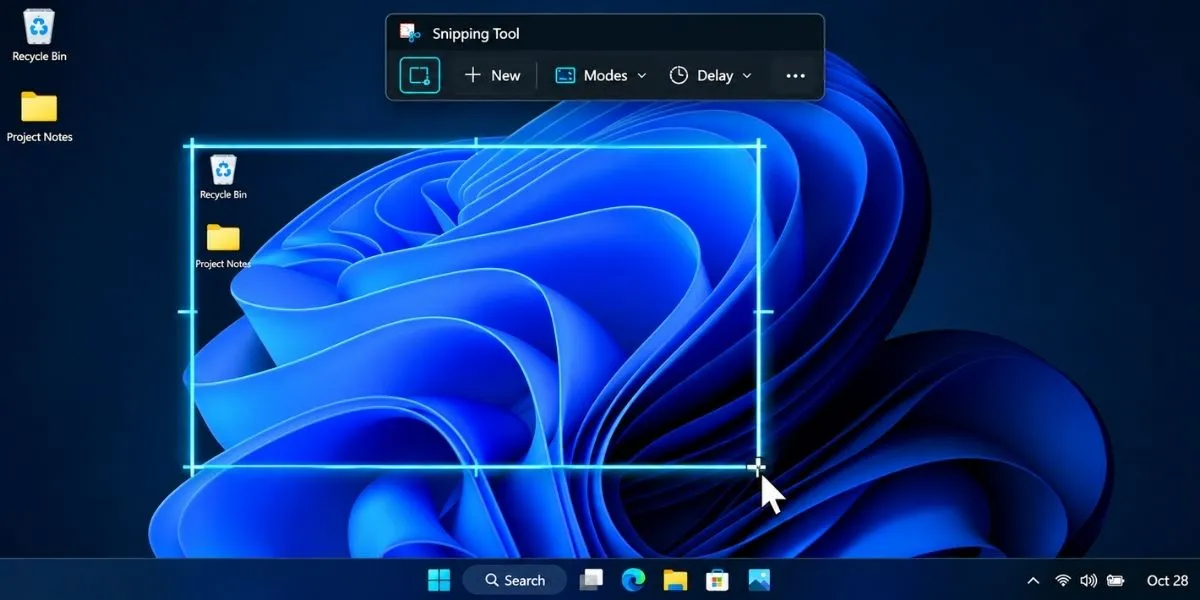
The fastest way to take a screenshot on Windows 11 is using the Windows key + shift + S shortcut. Your screen will dim and a small toolbar will appear on the top of it. Click and drag the mouse to select the area of the screen that you want to capture. When you release the mouse button, the image will be copied to your clipboard, and a small notification will appear in the corner of the screen. You can click on it to open the Snipping Tool and crop the image, draw on it or save it. Alternatively, you can go to the application window and press Ctrl + V to paste it there. This action will work in most instant messengers and applications that have the paste function.

The four icons at the top of the toolbar indicate the screenshot modes. The default one is a dashed rectangle, which will appear when you click and drag to choose the area for capturing. The second mode also allows you to choose a region, but with a freehand selection; it may be useful if you want to capture an irregular zone. The third mode lets you capture a single window: simply click on it, and it will be saved as a screenshot. The fourth mode is the simplest: it captures the whole screen. In Windows 11, the last mode also includes the option to record a video.

Article image

If you want to capture the full screen, you can use the Print Screen key (often abbreviated as PrtScn). It will copy the image to the clipboard, from which you can paste it into a separate window. It could be Paint, Word, WhatsApp Web or simply an email. Another option to capture the entire screen with a keystroke is Windows key + print screen: in this case, the screenshot will be saved automatically in the Pictures > Screenshots folder in your computer. This may be a convenient solution when you want to take several screenshots one after another without pasting them into separate windows.

To capture only the single window in a screenshot, use Alt + Print Screen keys: the active window will be saved as an image in the clipboard. In this case, you will need to paste it into a separate window to see it (e. g. Paint). However, the borders of the window and its title bar will not appear in the screenshot. Additionally, using Alt + the Print Screen key is often required to hold the FN key simultaneously; it depends on the laptop’s keyboard design and Windows settings. For example, FN key is often active by default, and you may need to hold it to access the Print Screen function.

A similar option to capture one window is available through the Run menu. Press the Windows key and type “Snipping Tool,” then click the Enter key. It will open an additional window and allow you to capture either a selected region, window or full-screen. The advantage of using this tool is that it has a timer function - you can delay the screenshot by several seconds, which is sometimes required to capture pop-up elements or menus that disappear when you click outside of them. Furthermore, the tool is equipped with additional functions such as editing and annotating a screenshot. There is also an option to extract text from a picture in the latest version of the tool.

There are a few general tips and tricks regarding taking screenshots. First, if the Print Screen key starts to show the snipping toolbar and no longer makes the full screenshot immediately, you can change this setting. Go to the Settings > Accessibility > Keyboard and turn off the “Show a snipping toolbar when I press Print Screen.”

A
Mind is power
View Profile

Phd in Psychology

0
Replying to the question above
Answered on10/15/26

Taking a screenshot on Windows 11 is simple and can be done using keyboard shortcuts or built-in tools. Whether you want to capture the entire screen, a specific window, or just a small area, Windows 11 provides several convenient options.

Article image

1. Use Windows + Shift + S

The easiest way to capture a specific part of your screen is to use the Snipping Tool shortcut.

Steps:

  1. Press Windows + Shift + S on your keyboard.

  2. Your screen will dim, and a screenshot toolbar will appear.

  3. Choose the type of screenshot you want:

    • Rectangular snip

    • Freeform snip

    • Window snip

    • Full-screen snip

  4. Select the area or window you want to capture.

  5. Click the screenshot notification to open and edit the image.

You can then save the screenshot or copy it to share with someone.

2. Capture the Entire Screen

If you want to capture everything visible on your screen, use the Print Screen key.

Steps:

  1. Press the PrtSc or Print Screen key.

  2. Depending on your keyboard and Windows settings, the screen may open the Snipping Tool or copy the screenshot to your clipboard.

  3. If the screenshot is copied, open Paint, Word, or another suitable application.

  4. Press Ctrl + V to paste it.

  5. Save the image if needed.

On some laptops, you may need to press Fn + PrtSc.

3. Save a Screenshot Automatically

Windows 11 also provides a shortcut that saves a screenshot directly as an image file.

Steps:

  1. Press Windows + PrtSc.

  2. Your screen may briefly dim to indicate that the screenshot was captured.

  3. Open File Explorer.

  4. Navigate to Pictures → Screenshots.

Your screenshot should be saved there automatically. On some laptops, you may need to use Windows + Fn + PrtSc.

4. Capture Only the Active Window

If you want to capture just the window you are currently using, follow these steps:

  1. Click the window you want to capture.

  2. Press Alt + PrtSc.

  3. Open Paint or another image-editing application.

  4. Press Ctrl + V to paste the screenshot.

  5. Save the image.

This method is useful when you want to capture a particular application without including the rest of your desktop.

5. Use the Snipping Tool App

The Snipping Tool is a built-in Windows 11 application that lets you take and edit screenshots.

Steps:

  1. Open the Start menu.

  2. Search for Snipping Tool.

  3. Open the application.

  4. Click New.

  5. Select the area you want to capture.

  6. Use the available editing options, then click the Save icon.

Depending on the version, the Snipping Tool also supports screen recording.

6. Which Screenshot Method Should You Use?

Method

Best for

Windows + Shift + S

Capturing a selected area

Windows + PrtSc

Saving the full screen automatically

PrtSc

Capturing the screen or opening the snipping interface, depending on settings

Alt + PrtSc

Capturing the active window

Snipping Tool

Taking and editing screenshots

7. Where Are Screenshots Saved?

The location depends on the method you use.

  • Windows + PrtSc: Usually saves to

  • Windows + Shift + S: Usually copies the screenshot to the clipboard; you can save it from the Snipping Tool.

  • Alt + PrtSc: Usually copies the active window to the clipboard.

If you cannot find your screenshot, check the clipboard by opening an application and pressing Ctrl + V.

Conclusion

Taking a screenshot on Windows 11 is quick and convenient. For most situations, Windows + Shift + S is the best shortcut because it lets you capture exactly what you need. If you want to save the entire screen automatically, use Windows + PrtSc. These built-in options make capturing, editing, and sharing screenshots easy without installing additional software.

Also Read: what is remote sensing?

R
View Profile
1
Replying to the question above
Answered on10/16/26

As someone who works in IT support, this is one of the questions I get asked the most, so I wanted to add a couple of small tips that save me time every day.

The quickest method is Windows key + Shift + S. It opens the snipping overlay so you can drag over exactly the area you need, and the capture goes straight to your clipboard, ready to paste anywhere with Ctrl + V. For a full-screen grab, the Print Screen key still works, and Windows + Print Screen saves the image as a file in the Screenshots folder automatically.

One trick many people miss: the Snipping Tool lets you set a 3 or 10 second delay, which is perfect for capturing menus or pop-ups that disappear when you click away. And if you take several screenshots in a row, press Windows + V to open clipboard history and pick the exact one you want instead of pasting them one at a time.

Hope that helps!

Daniel Brooks
View Profile

Hi, I am Daniel Brooks, an IT Support Technician based in Albuquerque, New Mexico. I spend my days helping people solve everyday tech problems, from stubborn printers and Wi-Fi dropouts to slow laptops and software glitches. I enjoy learning new troubleshooting tricks, helping friends and family with their gadgets, and joining friendly discussions about technology and daily life. Happy to help wherever I can and to learn from everyone here.

0
Replying to the question above
Answered on10/07/26

Taking a screenshot on Windows 11 is quick and easy. You can capture the entire screen, a specific part of the screen, or an individual window using built-in Windows tools. The easiest method for most users is the Snipping Tool, which lets you select exactly what you want to capture and then edit or save the image.

Whether you want to save an important webpage, capture an error message, share something with someone, or keep a copy of information on your screen, Windows 11 provides several useful screenshot options.

Windows 11 Screenshot Methods at a Glance

Method

Shortcut / Action

What It Does

Snipping Tool

Windows + Shift + S

Capture a selected area

Print Screen

PrtScn

Capture the screen to the clipboard

Windows + Print Screen

Windows + PrtScn

Capture and save the full screen

Active window

Alt + PrtScn

Capture the current window

Snipping Tool app

Start → Snipping Tool

Choose different capture modes

The Easiest Way: Windows + Shift + S

If you are wondering how to screenshot on Windows 11, the Windows + Shift + S shortcut is one of the most convenient options.

  1. Press Windows + Shift + S.

  2. Your screen will become slightly darker.

  3. Choose the area you want to capture.

  4. Drag your mouse over the desired area.

  5. Windows copies the screenshot to the clipboard.

  6. Select the notification that appears if you want to open and edit the screenshot in Snipping Tool.

You can then save the image or paste it into another application using Ctrl + V.

Using the Snipping Tool

The Snipping Tool in Windows 11 provides several ways to capture your screen. You can choose a rectangular area, a freeform shape, a particular window, or the entire screen.

To open it, search for Snipping Tool from the Start menu. You can then select New and choose the type of screenshot you want.

The tool also allows you to crop, draw, highlight, save, and share your screenshot after capturing it.

Using the Print Screen Key

Another simple option is the PrtScn (Print Screen) key. Depending on your Windows settings, pressing it can capture the screen and place the image in your clipboard or open the screen-snipping interface

If you press Windows + PrtScn, Windows captures the entire screen and saves the screenshot as a file in the Screenshots folder inside Pictures.

Capturing Only the Active Window

If you only want to capture the application or window you are currently using, press:

Alt + PrtScn

The screenshot is copied to the clipboard, so you can paste it into an application such as Paint, Word, or an email.

Where Are Screenshots Saved on Windows 11?

Screenshots captured with Windows + PrtScn are normally saved in:

Pictures → Screenshots

You can open File Explorer and select the Pictures folder to find them.

Screenshots captured with Snipping Tool can also be saved manually using the Save option, allowing you to choose the location and filename.

Common Windows 11 Screenshot Shortcuts

Shortcut

Purpose

Windows + Shift + S

Select part of the screen

Windows + PrtScn

Capture and save the full screen

PrtScn

Capture the screen

Alt + PrtScn

Capture the active window

Conclusion

Windows 11 makes taking screenshots simple through Snipping Tool and keyboard shortcuts. For most situations, Windows + Shift + S is a convenient choice because it lets you select exactly which part of the screen you want to capture. For a full-screen screenshot that is automatically saved, Windows + PrtScn is useful.

Also Read: What is PhoneGap development?

Joe Rose
Eleven years building systems at scale — writing about technology from the inside, where architecture decisions have real consequences.
View Profile

Joe Rose is a Systems Architect and science and technology writer with over 11 years of hands-on experience designing and building large-scale distributed systems, cloud infrastructure, and enterprise technology solutions. He holds a Master of Science in Computer Science from Carnegie Mellon University and a Bachelor of Engineering in Software Engineering from the University of Toronto — credentials that anchor his technical writing in one of the most rigorous engineering traditions in North America. His content covers systems design, cloud architecture, distributed computing, cybersecurity, AI and machine learning infrastructure, software engineering best practices, and the practical implications of emerging technology for enterprises and developers. His work has appeared on platforms including IEEE Spectrum, Wired, and ACM Queue, where he contributes technically rigorous articles and analyses for engineers, technology leaders, and informed readers who want science and technology content written by someone who has actually built the systems being discussed. Over 11 years, Joe has architected enterprise systems for organisations across North America and Europe, working across sectors including fintech, healthcare technology, and cloud infrastructure. He holds AWS Solutions Architect Professional and Google Cloud Professional Cloud Architect certifications, has published 300+ articles and technical papers, and has presented at AWS re:Invent and QCon London. He is a Senior Member of the Institute of Electrical and Electronics Engineers (IEEE). Across all his writing, every technical claim is verified against current engineering practice, every architectural recommendation reflects real-world implementation experience, and no technology trend is covered without examining the systemic tradeoffs that practitioners actually face — because technology writing that ignores how systems behave under real conditions is not useful to the people who build them.

1
Updated on06/06/26

Taking a screenshot on Mac is very easy. On your Mac-Apple you can capture a selected portion of the screen or the entire screen. Also, you can also capture an entire window.

In MacOS Mojave, you press Shift-Command-5, to see the options for taking images and recording videos of your screen.
 
1. If you click the Capture Entire Screen button, your pointer will change to a camera. Now click “capture”, or click on the part of the screen you want to capture.
 
2. If you click the Capture Selected Window button, your pointer will change into the camera as in the previous function and will need to click on a window to capture that.
 
3. Clicking the Capture Selected Portion button and dragging on the screen to select an area, will allow you to capture that particular area. Now click “capture” on the onscreen potions.
 
4. To capture menu, click on the menu so that all the options are shown. Now press shift-command-5, now follow the same steps as mentioned above to capture the menu.
 
Shortcuts:
 
1. Capturing the entire screen: Shift-Command-3.
 
2. Capturing the window: Press Shift-Command-4, and then press the space bar. Click a window to capture it when the pointer changes to the camera.
 
3. Capturing the selected portion of the screen: Press Shift-Command-4, and drag to select the area you want to capture. Press and hold spacebar while dragging to move the selected area.
 
4. Capturing the menu: Click the menu so that all the options are shown. Press Shift-Command-4. Press spacebar to change the pointer to. And click the menu to capture it.
 
In all the cases, the file will be saved as .png on the desktop.
S
View Profile
1
0
Replying to the question above
Answered on10/12/26

Taking a screenshot on Windows 11 is easy. You can capture your entire screen, a specific window, or just a selected area using built-in keyboard shortcuts and tools. The easiest method is to press Windows + Shift + S to open the Snipping Tool and select the area you want to capture.

Article image

If you are wondering how to take a screenshot on Windows 11, this guide explains the different methods, keyboard shortcuts, and locations where your screenshots are saved.

1. How to Take a Screenshot on Windows 11 Using Keyboard Shortcuts

Windows 11 offers several keyboard shortcuts for capturing screenshots. The right shortcut depends on what you want to capture.

Keyboard Shortcut

What It Does

Windows + Shift + S

Opens the screenshot selection tool

Windows + PrtScn

Captures the entire screen and saves the image automatically

PrtScn

Usually opens the screen-capture interface or copies the screen, depending on your settings

Alt + PrtScn

Captures the active window and copies it to the clipboard

Windows + Alt + PrtScn

Captures the active game or app window using Xbox Game Bar, where supported

These Windows 11 screenshot shortcuts make it easy to capture screen content without installing additional software.

2. Use Windows + Shift + S to Capture a Selected Area

The Windows + Shift + S shortcut is one of the most convenient ways of taking a screenshot on Windows.

Follow these steps:

  1. Open the screen or window you want to capture.

  2. Press Windows + Shift + S on your keyboard.

  3. Select the screenshot mode from the toolbar, such as rectangular snip, freeform snip, window snip, or full-screen snip.

  4. Select the area or window you want to capture.

  5. Click the screenshot notification that appears to open the captured image.

  6. Edit or save the image if needed.

This method is useful when you want to capture only a particular section of a webpage, document, or application.

3. How to Take a Full-Screen Screenshot on Windows 11

If you want to capture everything visible on your screen, you can use the Windows + PrtScn shortcut.

Steps:

  1. Display the screen you want to capture.

  2. Press Windows + PrtScn together.

  3. Your screen may briefly dim to indicate that the screenshot has been taken.

  4. Open File Explorer and navigate to Pictures → Screenshots.

Your screenshot should appear in this folder. If your keyboard does not have a dedicated PrtScn key, you may need to use an Fn combination or another supported shortcut.

4. How to Screenshot an Active Window

If you only need to capture one open application, such as a browser or document, use the Alt + PrtScn shortcut.

Follow these steps:

  1. Click the window you want to capture so it becomes active.

  2. Press Alt + PrtScn.

  3. Open Paint, Word, or another application that accepts images.

  4. Press Ctrl + V to paste the screenshot.

  5. Save the image to your preferred location.

This method is helpful when you do not want the screenshot to include the taskbar or other open windows.

5. Use the Snipping Tool in Windows 11

The Snipping Tool is a built-in Windows application that allows you to capture and edit screenshots.

To use it:

  1. Open the Start menu.

  2. Search for Snipping Tool.

  3. Open the application and click New.

  4. Select the area you want to capture.

  5. Use the available editing tools if necessary.

  6. Click the Save option to store the screenshot.

Depending on the version and settings, the Snipping Tool may also offer screen recording and additional capture options.

6. Where Are Screenshots Saved in Windows 11?

The screenshot location depends on the method you use.

Screenshot Method

Where to Find the Image

Windows + PrtScn

Pictures → Screenshots

Windows + Shift + S

Clipboard; save through the screenshot notification or Snipping Tool

Alt + PrtScn

Clipboard; paste into an image editor

Snipping Tool

Save to your chosen folder

If you cannot find a screenshot, check the clipboard by pressing Windows + V, if clipboard history is enabled. You can also open the Snipping Tool notification to save the image.

7. How Do I Get a Screenshot in Windows If the Shortcut Does Not Work?

If you are asking, “How do I get a screenshot in Windows?” but your keyboard shortcut is not working, try these solutions:

  • Check whether your keyboard requires the Fn key with PrtScn.

  • Open the Snipping Tool manually from the Start menu.

  • Check whether the screenshot was copied to the clipboard rather than saved as a file.

  • Look in the Pictures → Screenshots folder.

  • Check the keyboard settings to see whether the Print Screen key is configured to open the Snipping Tool.

The exact behavior can vary depending on your keyboard, device manufacturer, and Windows settings.

Frequently Asked Questions

1. What is the easiest way to take a screenshot on Windows 11?

Press Windows + Shift + S. Select the area you want to capture, then open the screenshot notification to edit or save the image.

2. What is the Windows 11 screenshot shortcut for the full screen?

Press Windows + PrtScn to capture the entire screen and usually save the image automatically in Pictures → Screenshots.

3. Can I take a screenshot without using the keyboard?

Yes. Open the Snipping Tool from the Start menu, click New, and select the area you want to capture.

4. How do I save a screenshot as a JPG or PNG?

Open the screenshot in Paint, choose File → Save As, and select the format you want, such as PNG or JPEG.

Conclusion

Taking a screenshot on Windows 11 is simple once you know the right shortcut. Use Windows + Shift + S for a selected area, Windows + PrtScn for a full-screen capture, or the Snipping Tool for more control and editing options.

These built-in methods make capturing, saving, and sharing screenshots quick and convenient without requiring extra software.

Also Read: Name any five software centres?

Nakul Chauhan
View Profile

Nakul Chauhan is a technology consultant and science and technology writer with over 3 years of professional experience advising organisations on digital transformation, cloud infrastructure, and emerging technology adoption. He holds a Bachelor's degree in Computer Science and Engineering from the National Institute of Technology (NIT) Jaipur and carries an AWS Certified Solutions Architect certification — credentials that give his writing a technical depth that generalist science writers rarely bring to the table. His content covers artificial intelligence, cloud computing, cybersecurity, software development trends, and the practical application of emerging technologies across industries in India. His work has appeared on platforms including Analytics India Magazine, TechGig, and Digit.in, where he writes for technology professionals, business decision-makers, and informed readers who want science and technology content grounded in real consulting experience — not just trend reporting. Over three years, Nakul has advised startups and mid-size enterprises on technology strategy, evaluated and implemented cloud solutions, and translated complex technical decisions into business outcomes. He has published 100+ articles on science and technology across digital platforms and is an active contributor to the Indian technology community through his writing and professional practice. Across all his writing, every technical claim is verified, every trend is evaluated against real-world implementation experience, and every article is held to the standard his consulting clients expect — accuracy, clarity, and practical relevance.

0
Replying to the question above
Answered on10/19/26

The easiest way is to press Windows + Shift + S to open the Snipping Tool and select the area you want to capture. You can also press Windows + PrtScn to save a screenshot automatically in the Pictures > Screenshots folder. Both methods work well on Windows 11.

E
Author
View Profile
0
Replying to the question above
Answered on10/18/26

Adding a little more detail to my earlier answer, because the follow-up question I usually get is what to do after the screenshot is taken. Once the snipping overlay closes, the capture is sitting on your clipboard, and clicking the small preview that pops up in the corner opens it in the Snipping Tool editor. From there you can crop it tighter, draw an arrow or circle around the important part with the pen or highlighter, and use the ruler if you need a straight underline. In my experience that quick bit of annotating saves a lot of back-and-forth when you are showing someone which button to click or which error message you are looking at.

A few settings are worth changing once. In Settings, go to Accessibility, then Keyboard, and you can decide whether the Print Screen key opens the snipping tool or just copies the whole screen. If you take screenshots all day, turning on clipboard history under System, then Clipboard, is just as useful, because Windows + V then shows you a list of your recent captures instead of only the very last one. It is a small change, but it makes the whole routine feel much smoother.

Where the file ends up depends on the method, and that still catches people out. Windows key + Print Screen saves a PNG straight into Pictures, inside the Screenshots folder, and the screen dims briefly so you know it worked. Windows key + Shift + S only copies the image, so if you forget to paste or save it and then copy some text, the screenshot is gone unless clipboard history is on. On a laptop, remember the Function key as well: a lot of keyboards need Fn held down with Print Screen, and some smaller keyboards hide it on a shared key, which is why the shortcut can seem to do nothing at all.

One last practical tip from support work: if you are capturing a screenshot to show an error, include the whole window rather than cropping in too tightly. The title bar, any error code, and the time in the corner often tell the person helping you more than the message itself, and it avoids a second round of questions. And if the thing you need disappears when you click, set the delay in the Snipping Tool to 3 or 10 seconds, open the menu, and let the timer do the work for you.

Daniel Brooks
View Profile

Hi, I am Daniel Brooks, an IT Support Technician based in Albuquerque, New Mexico. I spend my days helping people solve everyday tech problems, from stubborn printers and Wi-Fi dropouts to slow laptops and software glitches. I enjoy learning new troubleshooting tricks, helping friends and family with their gadgets, and joining friendly discussions about technology and daily life. Happy to help wherever I can and to learn from everyone here.

0
Replying to the question above
Answered on10/16/26

Taking a screenshot on Windows 11 is quick and easy. You can capture the entire screen, a specific window, or a selected area using built-in keyboard shortcuts and the Snipping Tool. No additional software is required for basic screenshots.

In this guide, you will learn the easiest ways to take, save, edit, and find screenshots on a Windows 11 PC or laptop.

1. How to Take a Screenshot Using Windows + Shift + S

The Windows + Shift + S shortcut is one of the easiest ways to capture a specific part of your screen.

Steps to follow:

  1. Open the screen or application you want to capture.

  2. Press Windows + Shift + S simultaneously.

  3. Your screen will dim, and the screenshot toolbar will appear.

  4. Choose a capture mode, such as rectangular, freeform, window, or full-screen snip.

  5. Select the area you want to capture.

  6. Click the screenshot notification to open the image in the Snipping Tool.

  7. Select the Save icon to store the screenshot.

The screenshot is also copied to your clipboard, so you can press Ctrl + V to paste it into a compatible application.

2. How to Take a Full-Screen Screenshot

If you want to capture everything displayed on your screen, use the Windows + Print Screen shortcut.

Steps to follow:

  1. Press Windows + PrtSc.

  2. Wait briefly for the screen to dim, if supported by your device.

  3. Open File Explorer.

  4. Navigate to Pictures → Screenshots.

Windows normally saves the screenshot as an image file in this folder. The key may be labelled , or depending on your keyboard.

3. How to Screenshot Only the Active Window

Sometimes, you may want to capture only one application window rather than your entire desktop.

Follow these steps:

  1. Click the window you want to capture.

  2. Press Alt + PrtSc.

  3. Open Microsoft Paint or another compatible application.

  4. Press Ctrl + V to paste the screenshot.

  5. Save the image to your preferred location.

This method is useful when capturing a browser window, document, or application without including the rest of your desktop.

4. How to Use the Snipping Tool in Windows 11

The Snipping Tool is a built-in Windows application that lets you capture, edit, and save screenshots.

How to open it:

  1. Open the Start menu.

  2. Search for Snipping Tool.

  3. Open the application.

  4. Click New.

  5. Choose your preferred capture mode.

  6. Select the area or window you want to capture.

  7. Edit the image if needed and save it.

The tool offers several capture modes:

Capture mode

What it does

Rectangular snip

Captures a rectangular area

Freeform snip

Captures an area drawn by hand

Window snip

Captures a selected application window

Full-screen snip

Captures the entire screen

Depending on your Windows version, the Snipping Tool can also record video clips of selected screen areas.

5. Where Are Screenshots Saved in Windows 11?

The location depends on the screenshot method you use.

  • Windows + PrtSc: Usually saves the image in

  • Windows + Shift + S: Copies the capture to the clipboard and displays a notification for opening it in the Snipping Tool.

  • Alt + PrtSc: Copies the active window image to the clipboard.

If you cannot find a screenshot, open Paint and press Ctrl + V. If the image appears, you can save it using File → Save As.

6. What to Do If the Screenshot Shortcut Is Not Working

If you cannot take a screenshot, try these troubleshooting steps:

  • Check whether your keyboard has a dedicated Print Screen key.

  • On some laptops, try holding Fn while pressing the screenshot key.

  • Use Windows + Shift + S as an alternative.

  • Open the Snipping Tool manually from the Start menu.

  • Check Settings → Accessibility → Keyboard if you want the Print Screen key to open the screen-capture interface.

Keyboard behaviour can vary depending on the device and its settings.

Frequently Asked Questions

What is the shortcut key for taking a screenshot on Windows 11?

The most versatile shortcut is Windows + Shift + S. It allows you to select the screen area you want to capture.

How do I take a screenshot on Windows 11 without using a keyboard shortcut?

Open the Start menu, search for Snipping Tool, select New, and capture the desired area.

How do I save a screenshot directly to my computer?

Press Windows + PrtSc. The screenshot is usually saved automatically in the Pictures → Screenshots folder.

Can I edit a screenshot in Windows 11?

Yes. Open the capture in the Snipping Tool to crop, annotate, or make other supported edits before saving it.

Conclusion

Taking a screenshot on Windows 11 is simple with the built-in screenshot tools. Use Windows + Shift + S to capture a selected area, Windows + PrtSc to save the entire screen, or Alt + PrtSc to capture the active window.

For most users, the Snipping Tool is the most flexible option because it supports different capture modes and basic editing without requiring additional software.

Also Read: The use of mouse and keyboard?

Jony Backer
View Profile

I am a professional content writer.

0
Answered on11/17/23


How to crop a screenshot on a Mac?


Making a screenshot crop on a Mac is simple and can be done with the built-in tools that macOS offers. This is a detailed tutorial on cropping a screenshot on a Mac, which you may use to take a smaller picture of an already-taken screenshot or to capture a specific area of your screen.


Taking a Snapshot:


Screenshot taken: On a Mac, you may utilize a number of keyboard shortcuts to take a screenshot.

. {Command (⌘) + Shift + 3} will take a screen grab.

. Use `Command (⌘) + Shift + 4} to capture a specified area of the screen. When you do this, the cursor will turn into a crosshair, letting you choose the region you wish to capture.


Analyze this screenshot: Upon taking the screenshot, it will automatically be saved to your desktop. The file name format of the screenshot, which usually begins with "Screen Shot" and ends with the date and time, might be used to identify it.


Screenshot Cropping:


Start Preview and open the screenshot:


Find the screenshot file on your computer's desktop or in the saved destination folder.

After doing a right-click on the screenshot file, select "Open With" > "Preview." As an alternative, you could open Preview first, then use "File" > "Open" to find your screenshot.


Click on the Crop Tool.


After opening the screenshot in Preview, select the "Show Markup Toolbar" option. It appears as a toolbox and is typically located in the Preview window's upper-right corner.


Select the Cropping Tool:


The Crop tool is one of the many tools available to you in the Markup Toolbar. It appears to be a dashed-line square.

To use the Crop tool, click on it.


Modify the Crop Choice:


Place the pointer at one of the dashed line box's edges or corners when it displays over the screenshot.

To change the box's size and location, click and drag. You should preserve this area in your screenshot that has been cropped.


Improve the Crop:


You can also modify the selection pixel by pixel with your keyboard's arrow keys if you require more exact control.

To make sure the size is what you want, pay attention to the measurements in the lower-left corner of the Preview window.


Utilize the Crop:


After you're happy with the crop selection, click the "Crop" button in the toolbar or hit the "Enter" key on your keyboard.


Keep the Screenshot Cropped:


Choose "File" > "Save" (or "File" > "Export" if you wish to save it in a different format) after cropping.

If necessary, select a location and give your cropped screenshot a new name.


Check out the Screenshot Cropped:


Your edits are now saved with the cropped screenshot. The modified file will be accessible in the place you designated once you close Preview.


With a few simple steps, you can quickly take a screenshot on your Mac and then edit the image with the Preview program to meet your needs. This method works well and doesn't require any other software, which makes it a practical choice for simple image-altering jobs.


Letsdiskuss


Also Read :- How to take screenshot on mac?


Joe Rose
Eleven years building systems at scale — writing about technology from the inside, where architecture decisions have real consequences.
View Profile

Joe Rose is a Systems Architect and science and technology writer with over 11 years of hands-on experience designing and building large-scale distributed systems, cloud infrastructure, and enterprise technology solutions. He holds a Master of Science in Computer Science from Carnegie Mellon University and a Bachelor of Engineering in Software Engineering from the University of Toronto — credentials that anchor his technical writing in one of the most rigorous engineering traditions in North America. His content covers systems design, cloud architecture, distributed computing, cybersecurity, AI and machine learning infrastructure, software engineering best practices, and the practical implications of emerging technology for enterprises and developers. His work has appeared on platforms including IEEE Spectrum, Wired, and ACM Queue, where he contributes technically rigorous articles and analyses for engineers, technology leaders, and informed readers who want science and technology content written by someone who has actually built the systems being discussed. Over 11 years, Joe has architected enterprise systems for organisations across North America and Europe, working across sectors including fintech, healthcare technology, and cloud infrastructure. He holds AWS Solutions Architect Professional and Google Cloud Professional Cloud Architect certifications, has published 300+ articles and technical papers, and has presented at AWS re:Invent and QCon London. He is a Senior Member of the Institute of Electrical and Electronics Engineers (IEEE). Across all his writing, every technical claim is verified against current engineering practice, every architectural recommendation reflects real-world implementation experience, and no technology trend is covered without examining the systemic tradeoffs that practitioners actually face — because technology writing that ignores how systems behave under real conditions is not useful to the people who build them.

0
0
Replying to the question above
Answered on10/05/26

Learning how to take a screenshot on Windows 11 is useful when you need to save something visible on your screen, share an error, capture an important webpage or keep a record of your work. Windows 11 includes several built-in ways to capture the full screen, a specific window or just part of the display, so you usually don't need additional software.

Article image

Screenshot Methods Worth Knowing

  • Windows + Shift + S is one of the most useful Windows 11 screenshot shortcuts, especially when you only want to capture a specific part of the screen.

  • Windows + PrtScn is convenient for taking a full-screen screenshot and saving it automatically.

  • PrtScn lets you capture the screen and copy the image to the clipboard so you can paste it into another application.

  • Alt + PrtScn is useful when you only want to capture the currently active window.

  • Snipping Tool Windows 11 provides additional options for taking, editing and saving screenshots.

Best Ways to Take a Screenshot on Windows 11

  • Windows + Shift + S opens the Snipping Tool capture interface, allowing you to select a rectangular area, freeform area, window or the entire screen. This is generally the easiest method for capturing only the information you need.

  • Windows + PrtScn captures the entire screen and automatically saves the screenshot, making it a good choice when you want a permanent image without manually pasting it somewhere.

  • PrtScn captures the screen to the clipboard. You can then open Paint, Word or another compatible application and press Ctrl + V to paste the screenshot.

  • Alt + PrtScn captures only the active window rather than everything visible on your desktop, which is helpful when several applications are open.

  • Snipping Tool can be opened from the Start menu by searching for “Snipping Tool.” It provides a convenient interface for capturing and working with screenshots.

Where Are Screenshots Saved on Windows 11?

One of the common questions users have is where are screenshots saved on Windows 11. Screenshots taken with Windows + PrtScn are normally stored automatically in:

Pictures → Screenshots

Screenshots taken with Windows + Shift + S are generally copied to the clipboard first, although the Snipping Tool can also provide saving options depending on its settings and Windows version.

Smart Questions Before Taking a Screenshot

  • Do you need the whole screen or only part of it, since selecting a specific area can make the screenshot cleaner?

  • Do you want the screenshot saved automatically, or do you simply want to paste it into another application?

  • Are you trying to capture one particular window, in which case Alt + PrtScn can be more convenient?

  • Do you need to edit or annotate the screenshot, making the Snipping Tool a useful option?

Finding the Right Screenshot Method

For most Windows 11 users, Windows + Shift + S is the best all-purpose option because it lets you select exactly what you want to capture. If you want to capture the entire display and save the image automatically, Windows + PrtScn is a simpler choice.

If you're searching for how to screenshot on Windows 11, the easiest shortcuts to remember are Windows + Shift + S for selected areas and Windows + PrtScn for a full-screen screenshot. The built-in Snipping Tool Windows 11 also provides a straightforward way to capture and manage screenshots.

Also Read: Name any five software centres?

A
Translating science and technology into stories that inform, challenge, and matter.
View Profile

Aanya Sharma is a science and technology writer with over 5 years of experience and 300+ published articles across leading digital platforms. She holds a Bachelor's degree in Science (Physics) from Delhi University, which grounds her writing in scientific literacy and gives her the ability to evaluate technical claims with accuracy. Her work has appeared on platforms including The Wire Science, Analytics India Magazine, and Digit.in, where she has covered artificial intelligence, space exploration, consumer technology, environmental science, and emerging tech policy. With a focus on accuracy and clarity, her writing makes complex scientific and technological developments accessible to readers without a technical background. Aanya has participated in science communication panels at events including the India Science Festival and has been recognised as a contributor to responsible tech journalism in India. She is an active member of the National Association of Science Writers (NASW) and maintains a public portfolio of her published work. Across all her work, her writing is grounded in verified sources and a commitment to editorial standards — delivering content that readers can rely on in a space where misinformation spreads easily.

0