
The quickest way to type the squared symbol (²) depends on the device you're using. On Windows, you can use the Alt + 0178 keyboard shortcut (using the numeric keypad), while Mac users can simply press Option + 2. If you only need the symbol occasionally, the easiest solution is to copy and paste it:
²
Although many people call it the "square symbol," its official name is Superscript Two. It's commonly used in mathematics (x²), science (m/s²), and measurements like m² (square meters).
Platform-Specific Shortcuts
Here's the fastest method for each major platform.
| Device | Shortcut |
|---|---|
| Windows | Alt + 0178 (Numeric Keypad) |
| Mac | Option + 2 |
| Chromebook | Use Insert → Special Characters or Unicode methods |
| Android | Long-press 2 (supported on some keyboards) |
| iPhone / iPad | Copy and paste ² (or use Text Replacement) |
Windows
If your keyboard has a numeric keypad:
-
Turn on Num Lock.
-
Hold the Alt key.
-
Type 0178 on the numeric keypad.
-
Release the Alt key.
The symbol appears instantly:
²
If your laptop doesn't have a numeric keypad, don't worry. There are other methods covered below.
Mac
Mac makes this even easier.
Simply press:
Option (⌥) + 2
The squared symbol appears immediately.
Chromebook
ChromeOS doesn't have a dedicated shortcut for ² like Windows or Mac.
You can:
-
Use Insert → Special Characters (where available)
-
Copy and paste the symbol
-
Use superscript formatting in supported apps
Android & iPhone
Some mobile keyboards let you:
-
Long-press the number 2
-
Choose ²
If your keyboard doesn't support it, copying and pasting the symbol is usually the fastest option.
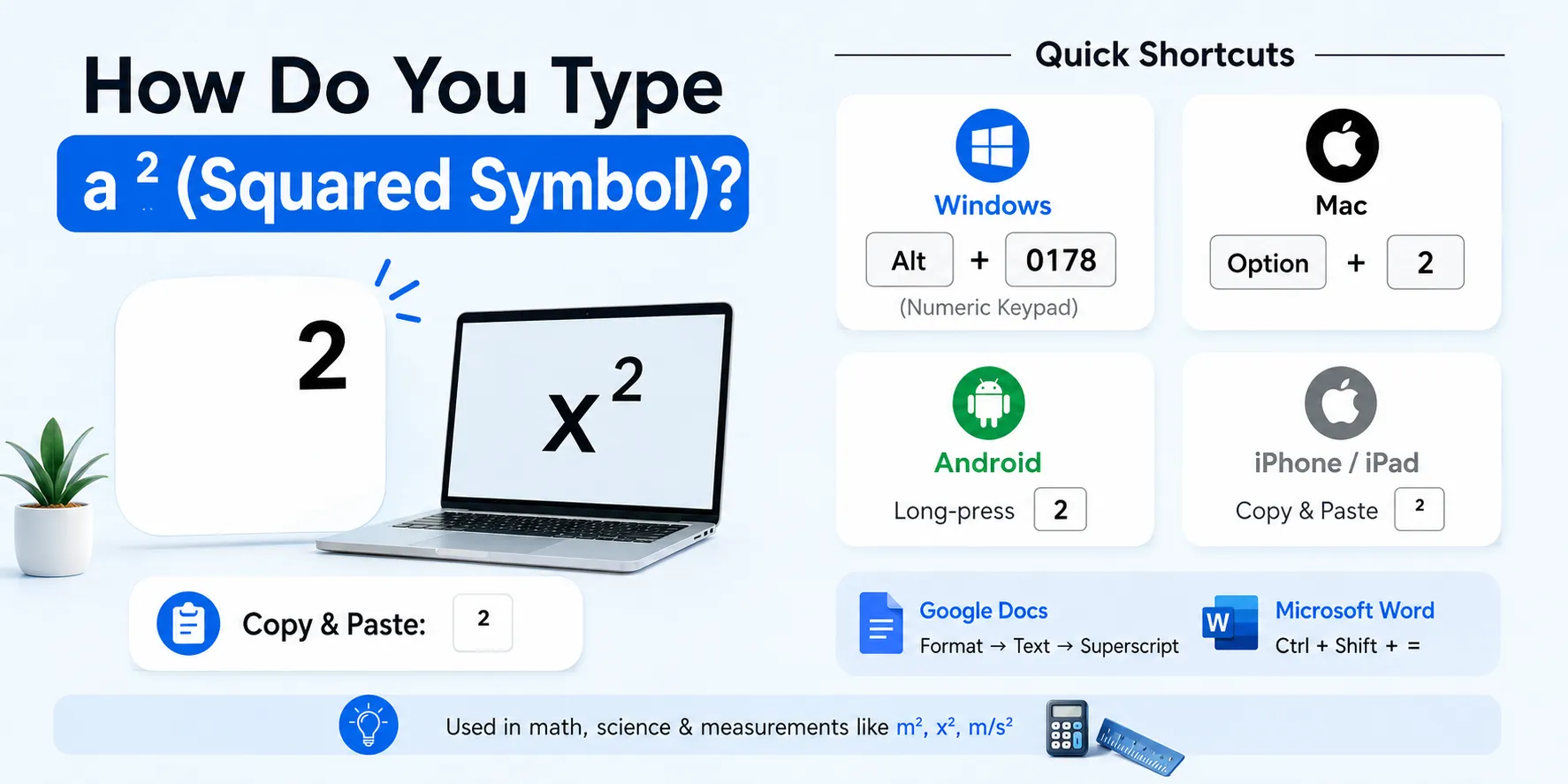
Copy-and-Paste Symbol
Need the symbol right now?
Simply copy this:
²
This works almost everywhere:
-
Microsoft Word
-
Google Docs
-
Excel
-
PowerPoint
-
Chrome
-
Gmail
-
WhatsApp
-
Notes
Honestly, this is the method I use most whenever I'm switching between different devices.
Document-Specific Methods
Some applications have built-in superscript tools that don't require special keyboard shortcuts.
Microsoft Word
Method 1:
-
Type 2.
-
Highlight it.
-
Press:
Ctrl + Shift + =
The selected number becomes superscript.
Method 2:
Go to:
Home → Font → Superscript (x²)
Google Docs
-
Type your text.
-
Highlight the number 2.
-
Click:
Format → Text → Superscript
Your text becomes:
x²
Microsoft Excel
Excel supports superscript formatting inside cells.
You can also paste:
²
directly into a cell if you simply need the symbol.
Squared Symbol vs Similar Options
Many people confuse these characters.
| Symbol | Meaning | Common Use |
|---|---|---|
| ² | Superscript Two | Mathematics, measurements |
| ^2 | Caret notation | Programming, plain text |
| 2 | Regular number | Normal typing |
| ³ | Cubed | Exponents of three |
For example:
-
x² → Mathematical notation
-
x^2 → Plain text or programming
-
m² → Square meters
If you're writing for school, research papers, or professional documents, ² usually looks cleaner than typing ^2.
Troubleshooting
Alt + 0178 Doesn't Work
Check these points:
-
Num Lock is enabled.
-
You're using the numeric keypad, not the number keys above the letters.
-
Your keyboard actually includes a numeric keypad.
My Laptop Has No Numeric Keypad
Use one of these methods:
-
Copy and paste ²
-
Character Map (Windows)
-
Word Superscript
-
Google Docs Superscript
The Symbol Looks Different
Some fonts display superscript characters slightly differently.
This is normal and doesn't affect the meaning.
Frequently Asked Questions (FAQs)
1. What is the shortcut for the squared symbol on Windows?
Use Alt + 0178 on the numeric keypad.
2. How do I type ² on a Mac?
Press Option + 2.
3. Can I type the squared symbol without a numeric keypad?
Yes. You can copy and paste ², use Character Map, or apply superscript formatting in Word or Google Docs.
4. Is ² the same as typing ^2?
Not exactly. ² is the actual superscript character, while ^2 is a text-based way to represent an exponent when superscript formatting isn't available.
5. Where is the squared symbol commonly used?
You'll often see it in:
- Algebra (x²)
- Physics (m/s²)
- Area measurements (m², ft²)
- Engineering and scientific documents
Squared Symbol at a Glance
| Method | Best For |
|---|---|
| Alt + 0178 | Windows |
| Option + 2 | Mac |
| Copy & Paste (²) | Any device |
| Ctrl + Shift + = | Microsoft Word |
| Format → Text → Superscript | Google Docs |
Typing the ² (squared symbol) is much easier once you know the right shortcut for your device. Windows users can use Alt + 0178, Mac users can press Option + 2, and everyone else can simply copy and paste the symbol when needed. If you're working in Word, Google Docs, or Excel, built-in superscript tools often provide the cleanest and most professional-looking result. Knowing these methods makes writing mathematical expressions, scientific formulas, and area measurements much quicker and more accurate.