

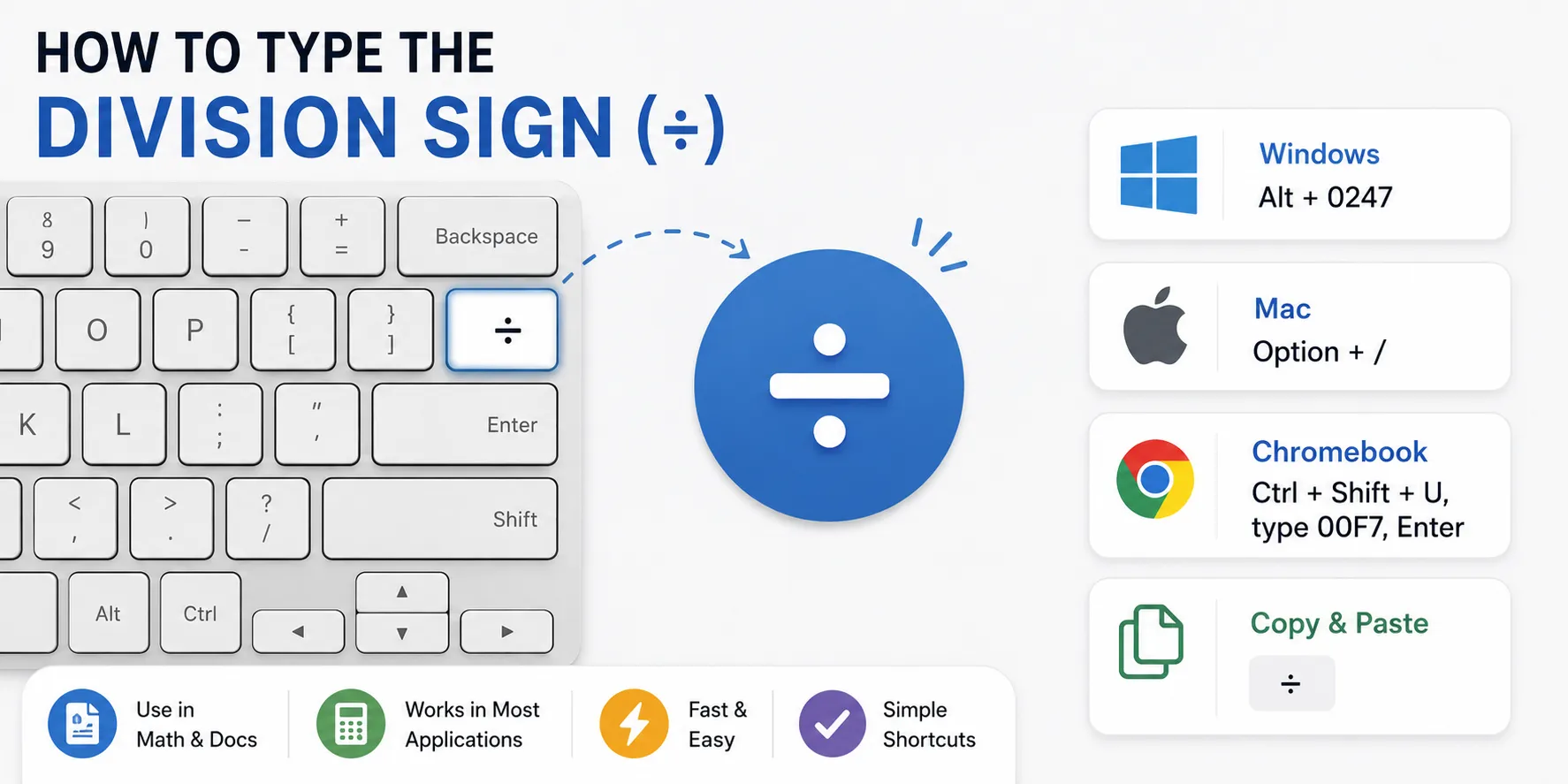
The fastest way to type the division sign (÷) depends on the device you're using. There isn't a dedicated ÷ key on most modern keyboards, but you can easily insert it using keyboard shortcuts, Alt codes, or by copying and pasting the symbol.
If you only need the symbol occasionally, the easiest solution is simply to copy this:
÷
One thing I've noticed is that many people search for the division sign because they see it in school textbooks. However, on computers, the forward slash ( / ) is often used instead of ÷, especially in programming, calculators, spreadsheets, and coding. Understanding when to use each symbol can save a lot of confusion.
Platform-Specific Shortcuts
Here's how to type the division sign on different devices.
| Device | Shortcut |
|---|---|
| Windows (Numeric Keypad) | Alt + 0247 or Alt + 246 |
| Mac | Option (⌥) + / |
| Chromebook | Ctrl + Shift + U, type 00F7, then press Enter |
| Microsoft Word | Type \div, then press Space (with Math AutoCorrect enabled) |
| Google Docs | Insert → Special Characters → Search "Division" |
| Android / iPhone | Usually copy and paste ÷ |
Windows
If your keyboard has a numeric keypad:
-
Turn on Num Lock.
-
Hold the Alt key.
-
Type 0247 (or 246) on the numeric keypad.
-
Release Alt.
The symbol appears:
÷
This method works in many Windows applications.
Mac
Mac users have one of the easiest shortcuts.
Simply press:
Option (⌥) + /
The division symbol appears instantly:
÷
This shortcut works in most macOS applications.
Chromebook
On ChromeOS:
-
Press Ctrl + Shift + U
-
Type 00F7
-
Press Enter
You'll get:
÷
Copy-and-Paste Symbol
If you don't want to remember shortcuts, simply copy this symbol:
÷
This is honestly the method I use most when switching between different devices. It works almost everywhere, including:
-
Microsoft Word
-
Google Docs
-
Excel
-
PowerPoint
-
Emails
-
Social media
-
Notes apps
Alternative Methods
Sometimes keyboard shortcuts aren't available.
Here are a few alternatives.
Character Map (Windows)
Open:
Character Map
Search for:
Division Sign
Then copy and paste it wherever needed.
Character Viewer (Mac)
Open:
Control + Command + Space
Search:
Division
Then click the symbol.
This is especially useful if you frequently use mathematical symbols.
Google Docs
Go to:
Insert → Special Characters
Search:
Division
Click the symbol.
Microsoft Word
With Math AutoCorrect enabled, type:
\div
Then press:
Space
Word automatically converts it into:
÷
Division Symbol vs Similar Symbols
Many people accidentally use the wrong symbol.
Here's the difference.
| Symbol | Meaning | Common Use |
|---|---|---|
| ÷ | Division sign | Mathematics |
| / | Forward slash | Programming, fractions, file paths |
| ∕ | Division slash | Mathematical notation |
| ➗ | Emoji | Messaging and social media |
One thing I've found interesting is that software developers almost never use ÷ in code. Instead, programming languages universally use the / symbol for division.
Troubleshooting
"Alt + 0247 doesn't work."
Possible reasons:
-
Num Lock is turned off.
-
You're using the numbers above the letters instead of the numeric keypad.
-
Your laptop doesn't have a dedicated numeric keypad.
"My keyboard has no numeric keypad."
Use:
-
Character Map
-
Copy and paste
-
Google Docs Special Characters
-
Microsoft Word Symbol menu
"I can't find the symbol on my phone."
Most Android and iPhone keyboards don't include a dedicated ÷ key.
The easiest solution is simply to copy:
÷
Or create a text replacement shortcut if you use it frequently.
Division Sign at a Glance
| Method | Best For |
|---|---|
| Alt + 0247 | Windows |
| Option + / | Mac |
| Copy & Paste | Any device |
| Character Map | Windows without keypad |
| Special Characters | Google Docs |
| \div + Space | Microsoft Word |
Although most keyboards don't have a dedicated division (÷) key, typing the symbol is much easier than many people think. Windows users can use Alt codes, Mac users can press Option + /, and anyone can simply copy and paste the symbol when needed. In many digital applications, you'll also notice that the forward slash / replaces the traditional division sign, particularly in programming and spreadsheets. Knowing these shortcuts can save time and make typing mathematical expressions much more convenient.
Frequently Asked Questions (FAQs)
1. What is the keyboard shortcut for the division sign?
On Windows, use Alt + 0247 (numeric keypad). On Mac, press Option + /.
2. Why doesn't my keyboard have a division key?
Most modern keyboards prioritize commonly used characters. Since the forward slash (/) is widely used for division in computing, a dedicated ÷ key is usually omitted.
3. Can I type the division sign on a laptop without a numeric keypad?
Yes. You can copy and paste ÷, use the Character Map, or insert it through your application's special characters menu.
4. Is "/" the same as "÷"?
No. ÷ is the traditional mathematical division sign, while / is the forward slash commonly used in programming, calculators, and fractions.
5. How do I type the division sign in Microsoft Word?
You can insert it through Insert → Symbol or type \div and press Space if Math AutoCorrect is enabled.
 Answered by